
Check and update the transcript settings and content before generating the minutes and actions
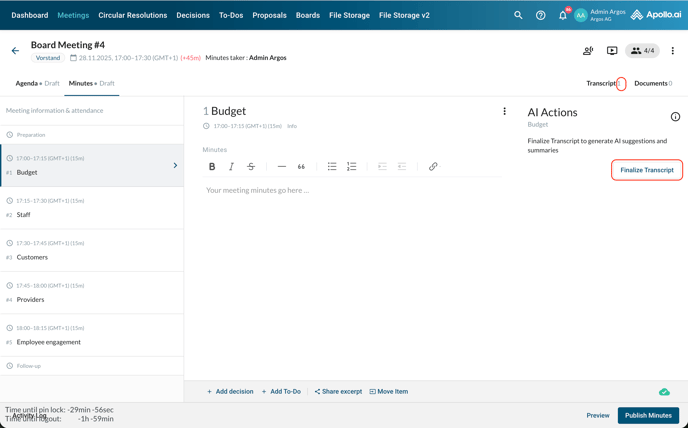
Once the transcript is ready, you see the number of the available transcripts (usually "1") next to the transcript icon and you can click on "Finalize transcript" on the right:
Switch to "Original" in the top-right corner to view the original transcript, which cannot be edited, and listen to the audio file. The exact spot in the text is highlighted when playing the audio, helping you follow through:
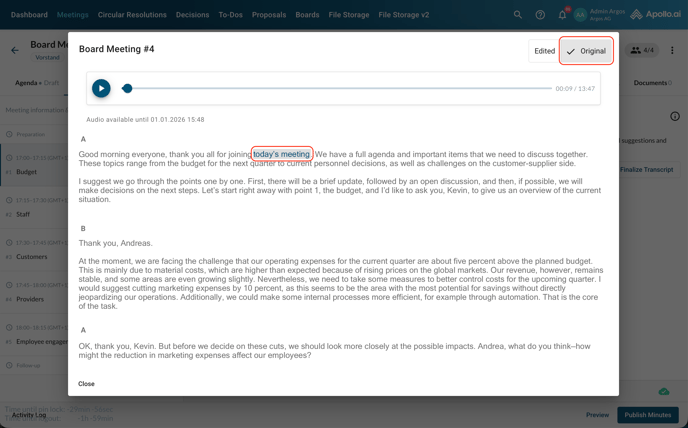
The original transcript is only visible to the Board Organizers. The audio file is automatically deleted after 30 days.
After switching back to "Edited" in the top-right corner, click on "Edit" at the bottom in order to:
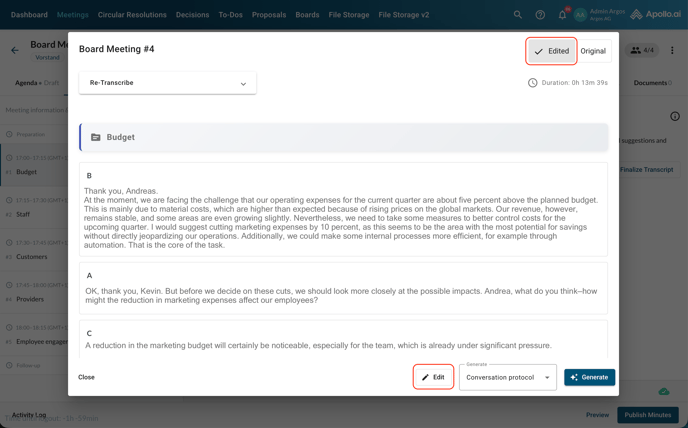
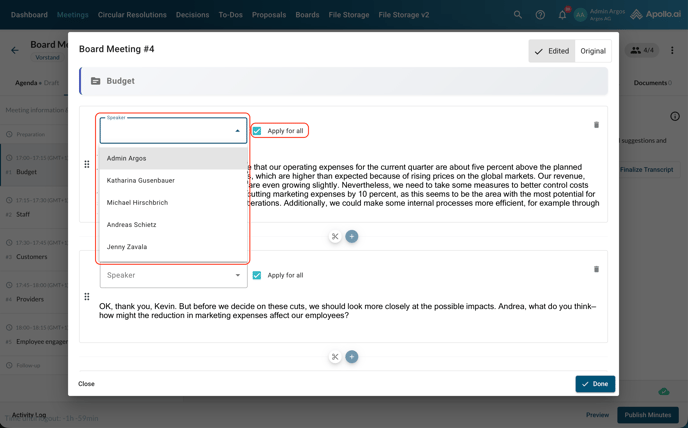
1) Match the recognised speakers with the meeting participants
The tool recognises the different voices that speak during the meeting, however no voice information is saved in the system for each user, so you will need to match the recognised speakers (indicated with A, B, C, ...) with the corresponding meeting participant.
Select the correct participant from the drop-down menu for each entry. By default, all instances of that speaker are updated to the selected participant, however you can untick the box "Apply for all" on the right if you wish to change a speaker for one entry only, for example if a voice was incorrectly recognised for one entry only.
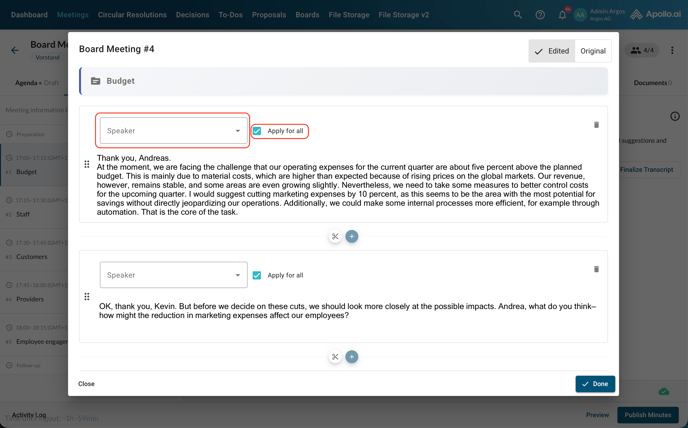
2) Correct words and speaker items (if applicable)
Click on the spot in the text that you wish to correct in order to edit it, just like you would do in a text editor.
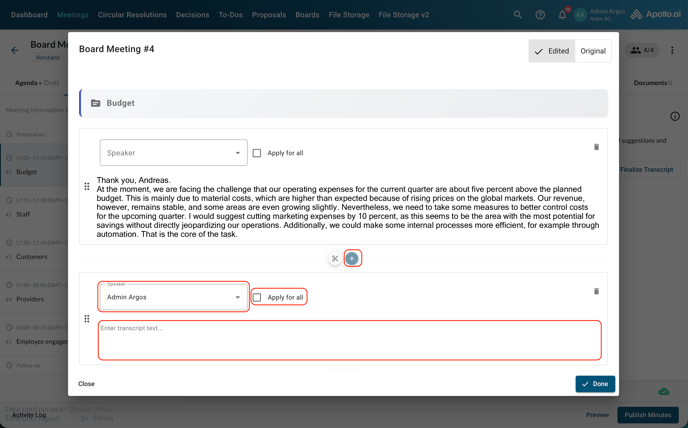
If you notice a speaker item that should be split between two speakers, click on the "+" symbol between two items to add a new item, then type the text (you can cut an existing text from another item and paste it here), and select the correct speaker:
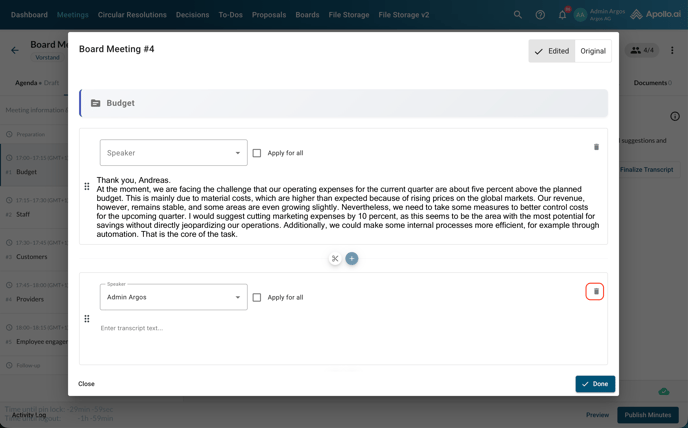
You can also delete an existing speaker item by clicking on the trash symbol:
Note: None of these edits influences or changes the original transcript in the tab "Original" in any way. For compliance reasons, the original can never be edited.
3) Adjust agenda item start and end points (if applicable)
The agenda item start and end points are automatically recognised in the transcript based on the topics discussed and the structure of the agenda.
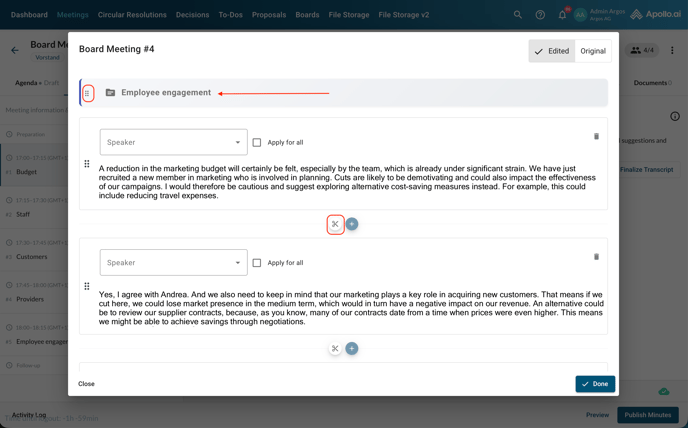
If you need to anticipate or postpone an agenda item, you can either drag & drop it using the six dots on the left of the item title or clicking on the scissors icon between two speaker items to make the current agenda item end at that point.
At the top, you can always see which agenda item you are currently at:
4) Generate a new transcript (if applicable)
If at first glance the speaker recognition does not look quite right, this is usually due to the wrong amount of total speakers being indicated to the AI in the transcript settings. In fact, the voice recognition only works well if the AI knows how many speakers are going to be in the meeting – this is a technical requirement.
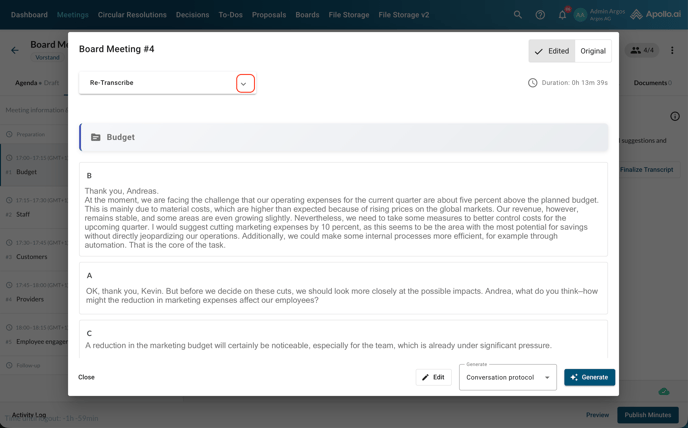
If this is the case, you can adjust the amount of total speakers by unhiding the range selector at the top, then clicking on "Re-transcribe":
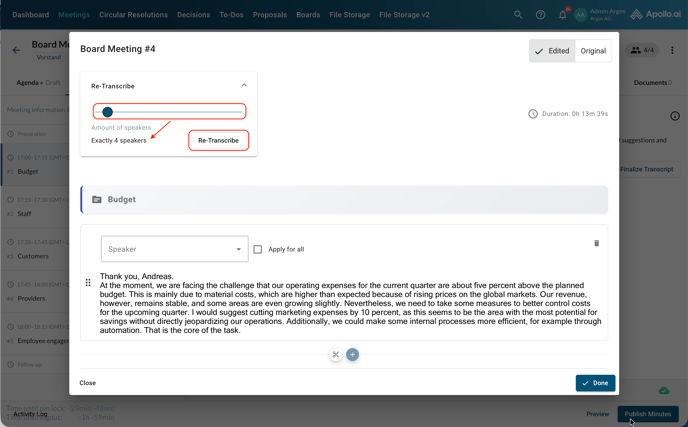
Note: If you re-transcribe the meeting, any previous edits will be lost in the process.
Click on "Done" in the bottom-right corner once done with all the edits:
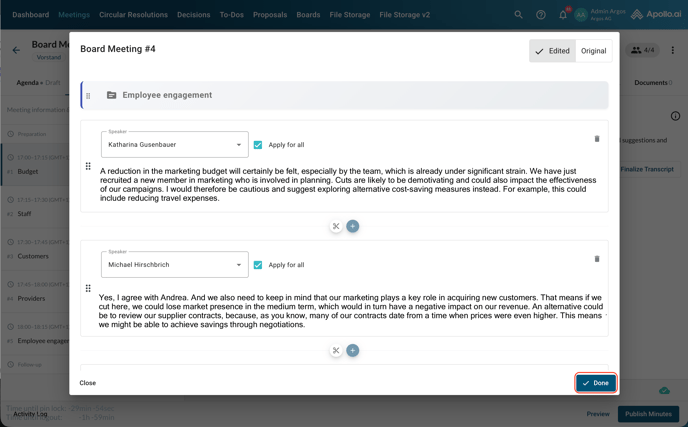
You can now proceed with the minutes generation.