![Apollo_Logo_img only.png]](https://help.apollo.ai/hs-fs/hubfs/Apollo_Logo_img%20only.png?height=40&name=Apollo_Logo_img%20only.png)
Note: If you publish the meeting minutes before starting the minutes review, the published version will be saved in the meeting history. It will thus be available to Board Members and Board Organizers to view as well as for comparing changes through the version history.
If you start the minutes review without publishing a version of the minutes first, please note that you will not be able to compare changes before and after the review through the meeting page. All review comments will still be saved in the file storage and be visible to Board Organizers in the split-screen review.
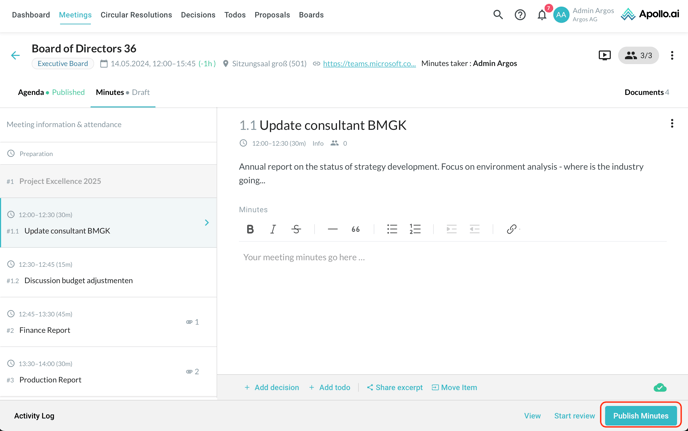
If you click on "Publish minutes" in the bottom-right corner, the minutes are sent out to all meeting participants and guests through an email and system notification:
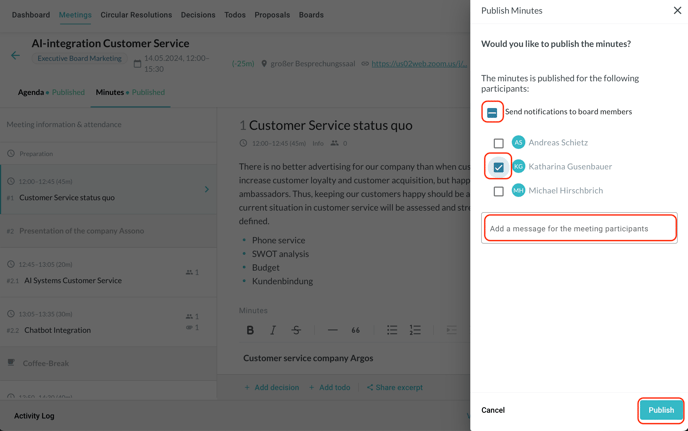
If you do not want all the recipients to be notified, you can tick off the option "Send notifications to board members" or choose manually which participants should be notified. You can also add a message for the recipient(s) before you click on "Publish" in the bottom-right corner: