![Apollo_Logo_img only.png]](https://help.apollo.ai/hs-fs/hubfs/Apollo_Logo_img%20only.png?height=40&name=Apollo_Logo_img%20only.png)
By linking two user accounts you can connect for example a managing director with their assistant or enable a user to carry out activities on behalf of another user (regardless of whether their role is Board Organizer, Board Member, or Basic User).
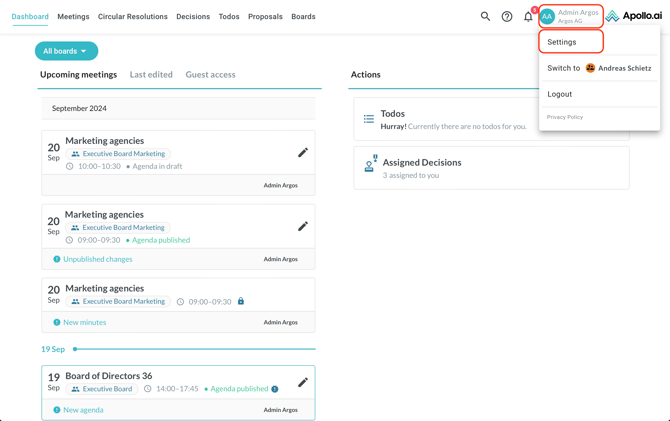
Click on your profile icon in the bottom-right corner, then on "Settings":
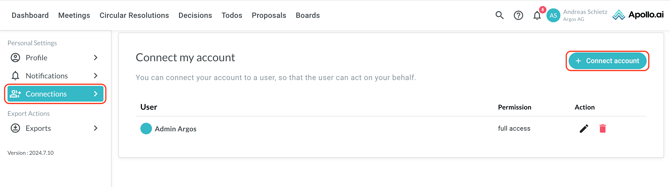
Navigate to "Connections" in the left column, then click on "Connect account" in the top-right corner:
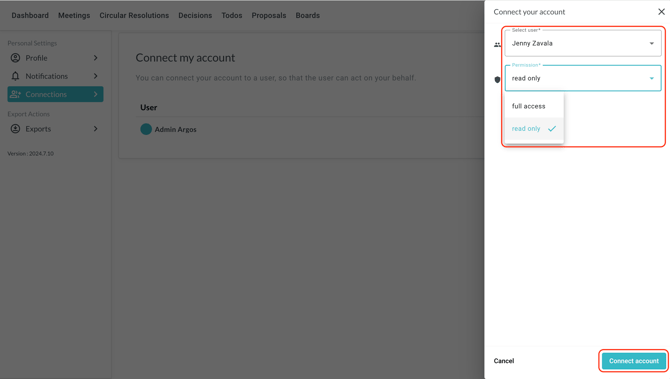
Select a user from the list and choose between "Read-only" or "Full Access":
- A read-only connection enables the connected user to view content only, e.g. read agendas & minutes and view decisions, to-dos, and circular resolutions.
- A full access connection enables the connected user to act on behalf of the board member, e.g. by reviewing & signing minutes and voting on circular resolutions.
Complete the process by clicking on "Connect account" at the bottom:
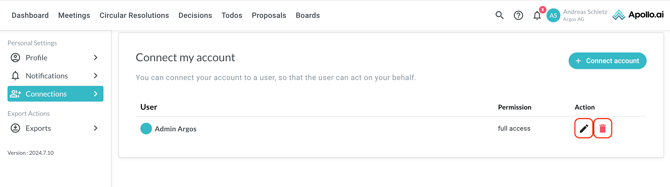
To remove an existing connection or edit the related access rights, just click on the respective buttons on the right:
Connected users with full access can:
- Sign meeting minutes
- Review meeting minutes
- Provide feedback on an agenda
- Comment on decision reports
- Create decision reports
- Vote on circular resolutions
- Propose agenda items
- Upload documents to an agenda