![Apollo_Logo_img only.png]](https://help.apollo.ai/hs-fs/hubfs/Apollo_Logo_img%20only.png?height=40&name=Apollo_Logo_img%20only.png)
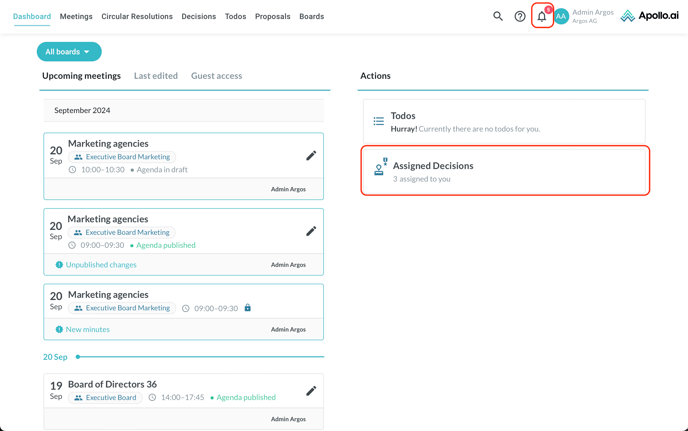
If you are responsible for a decision as a reporter, you will receive a system notification following the cadence set in the report cycle, prompting you to submit a report. Either open the notification or click on the action card "Assigned Decisions" in the dashboard:
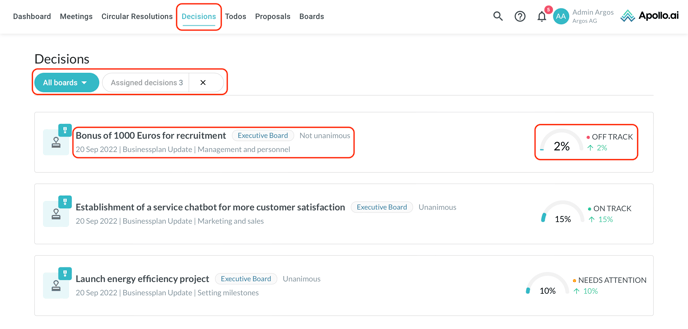
You are redirected to the "Decisions" tab, where all decisions are listed. A filter is preset for your assigned decisions at the top, however you may remove it and see all decisions instead if you prefer. You can only see decisions by boards that you are a member of.
You can also add a filter by board at the top.
The details of every decision are shown in every item:
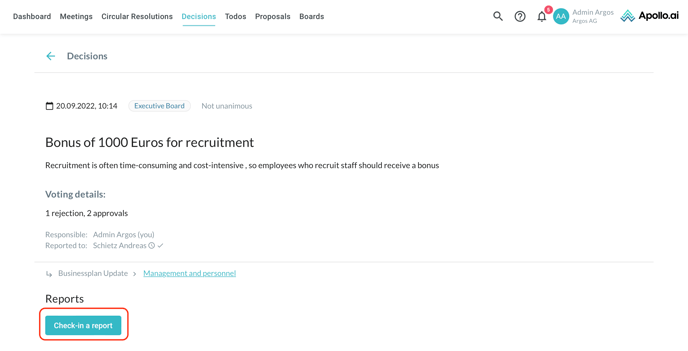
To submit a report for a decision, open the decision and click on the "Check in a report" button:
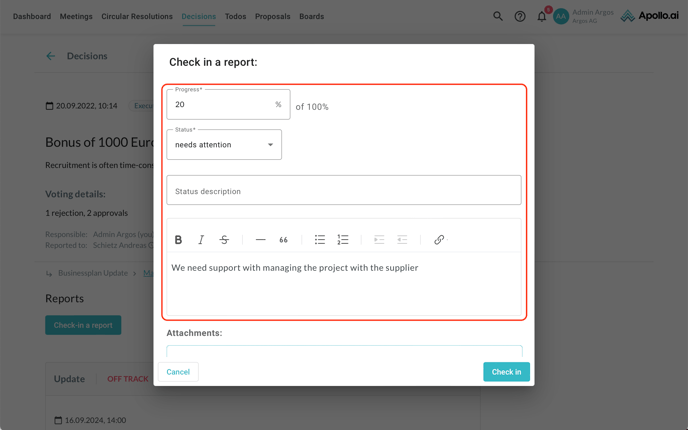
In the pop-up window, enter all the necessary information for your report. You can specify the progress and status as applicable:
You also have the possibility to attach a file if you scroll further down, before you click on "Check in" to save your progress:
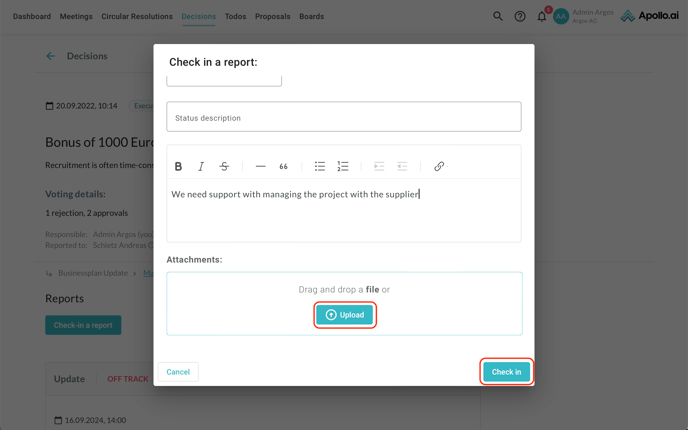
Once you save, the board member set to receive the decision progress updates will be notified that you have submitted a new report.
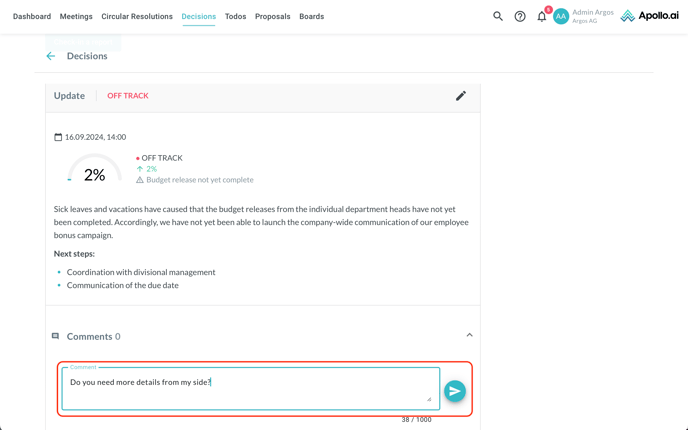
You and the assigned board member who receives the report can exchange comments directly on the decision by scrolling to the bottom part: