![Apollo_Logo_img only.png]](https://help.apollo.ai/hs-fs/hubfs/Apollo_Logo_img%20only.png?height=40&name=Apollo_Logo_img%20only.png)
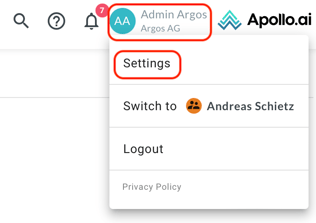
Click on your profile icon in the top-right corner, then on "Settings":
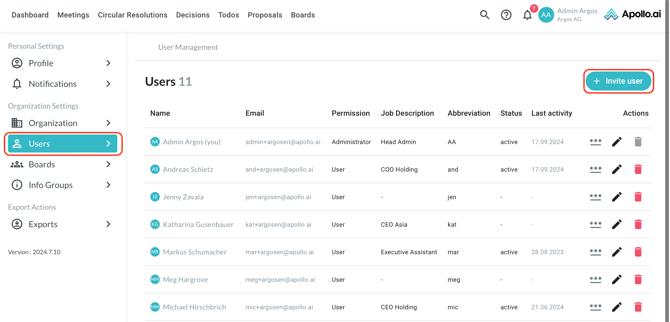
Navigate to "Organization settings" on the left, then click on "Invite user" in the top-right corner in order to add a new user:
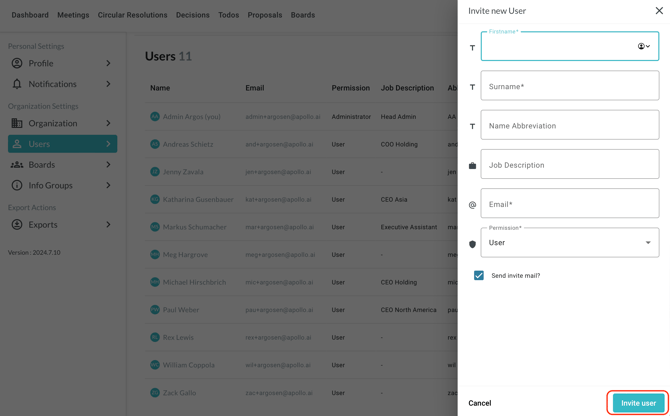
Fill out the form with the necessary data, then click on "Invite user" in the bottom-right corner:
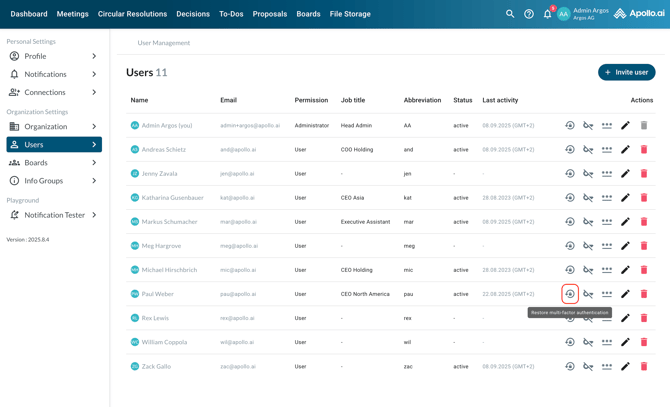
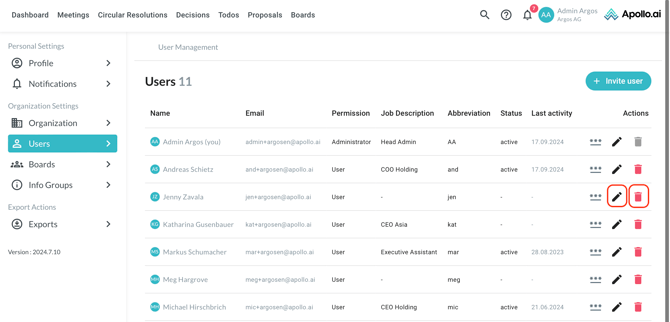
You can edit or delete an existing user by clicking on the respective symbol on the right:
When editing a board member or basic user, you can connect their personal assistant to their profile:
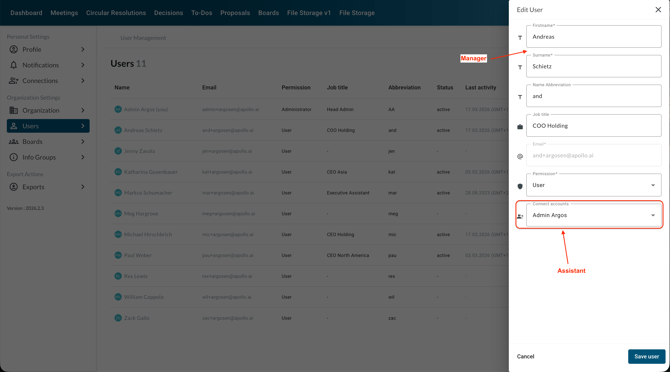
Note: This action grants viewing rights to the assistant when impersonating the manager. If the assistant needs editing rights as well, then the manager should grant such rights in the account connection settings. Organisation admins can only grant viewing rights to users.
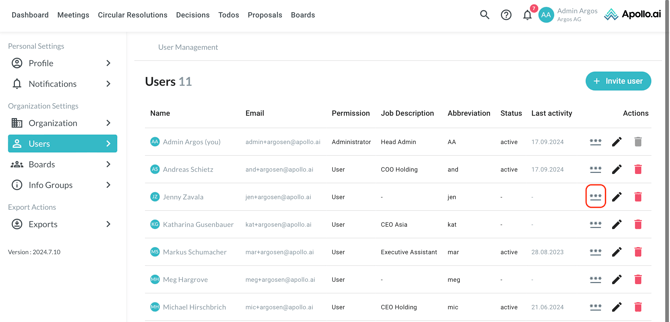
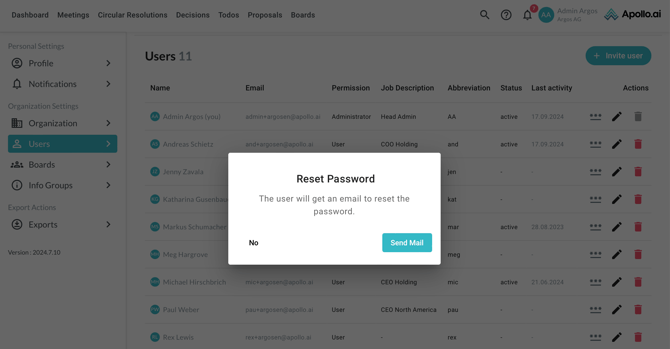
To reset the password for an existing user, click on the symbol with the three dots on the right:
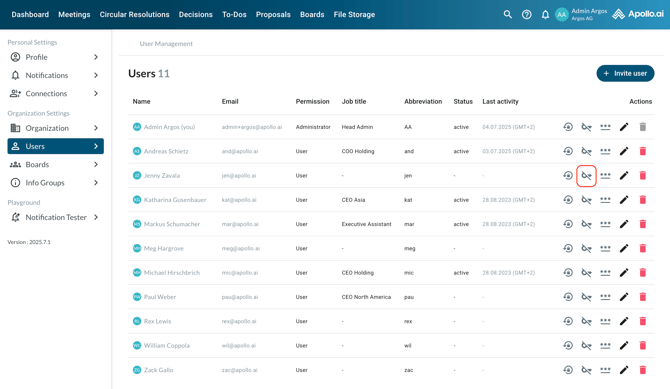
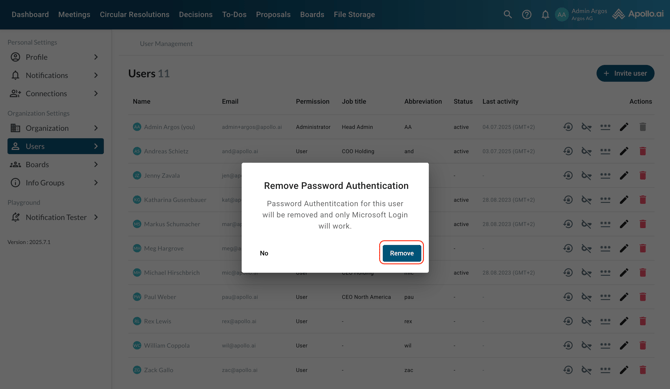
If your organisation logs in to Apollo via Microsoft SSO, you can also remove the email & password login for a selected user, so only the SSO login works for them. Click on the key symbol, then confirm the process by selecting 'Remove':
If your organisation uses 2-factor authentication, you can reset the 2-factor authentication key in case a user loses access to their current authenticator app and needs to scan the QR code again in order to add Apollo.ai to their new authenticator app: