![Apollo_Logo_img only.png]](https://help.apollo.ai/hs-fs/hubfs/Apollo_Logo_img%20only.png?height=40&name=Apollo_Logo_img%20only.png)
Note: If you are looking for the 1-step circular resolution process instead, please go to this article.
To use the 2-step circular resolution process, make sure the corresponding setting is enabled in the desired board first.
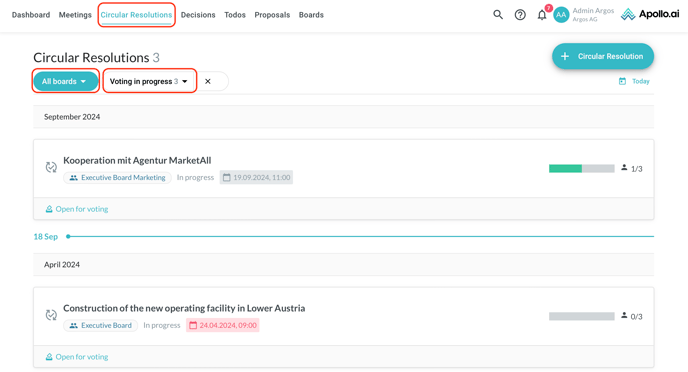
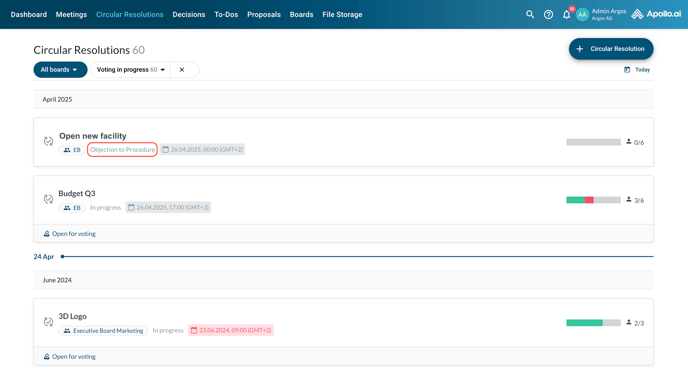
You can see all circular resolutions in the tab "Circular resolutions". You can filter by board or by status (draft, voting in progress, voting finished, canceled, final). In the following screenshot, a filter for "Voting in progress" is applied:
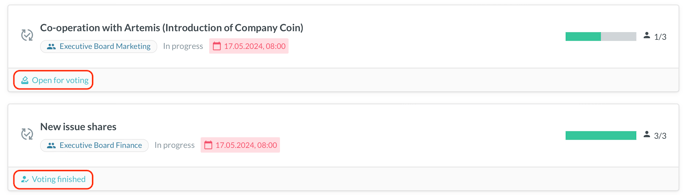
You can also see the status of each circular resolution:
- Open for voting = The circular resolution is ready to be voted on and all participants can vote at the same time.
- Voting finished = Either all participants have voted OR the required approval rate has been reached. The result is now clear and the assistant can finalise the decision.
- Final = The assistant has finalised the decision. The lock symbol on the right indicates that the circular resolution is closed and the result cannot be changed. The badge next to the status shows if the decision was approved, rejected, or undecided.

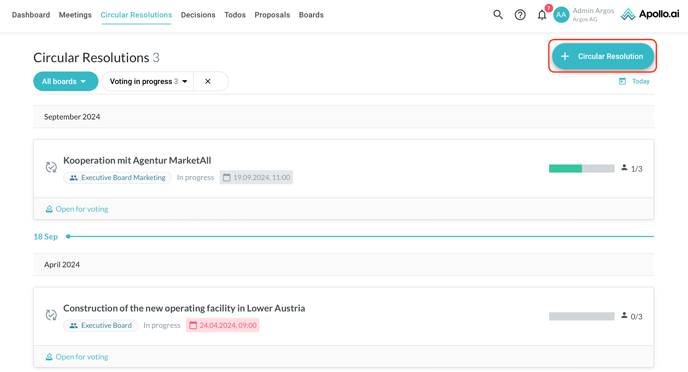
You can create a new circular resolution by clicking on the "+" button in the top-right corner:
You can indicate the title, description, due date, responsible board, and participants in the left column. On the right side instead you can see what the circular resolution is going to look like to the Board Members:
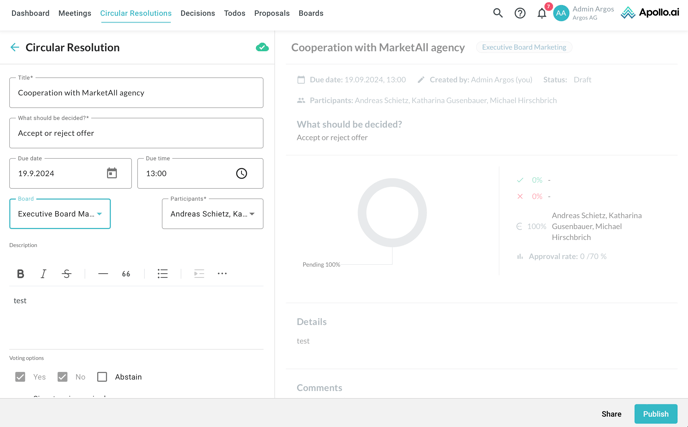
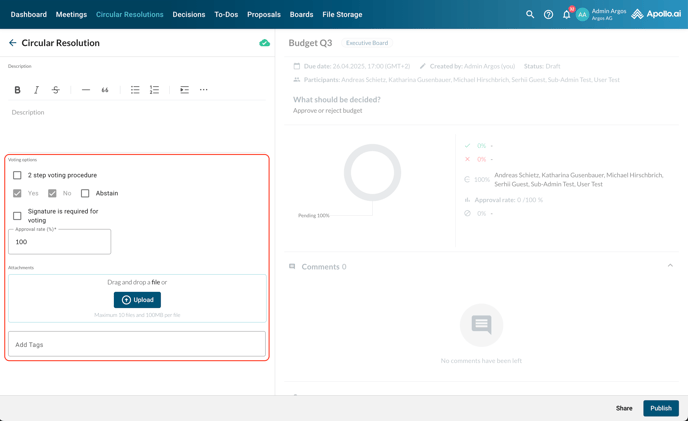
Further down in the left column you can define the voting options, upload files, and add tags:
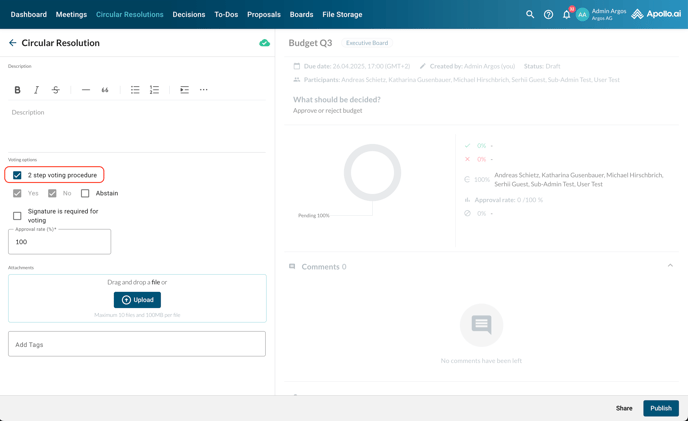
Make sure the box '2-step voting procedure' is checked in order to run the circular resolution approval in 2 steps (procedure approval and voting on resolution):
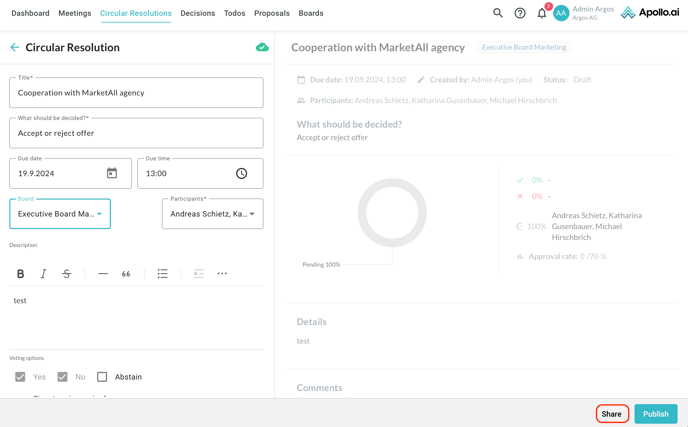
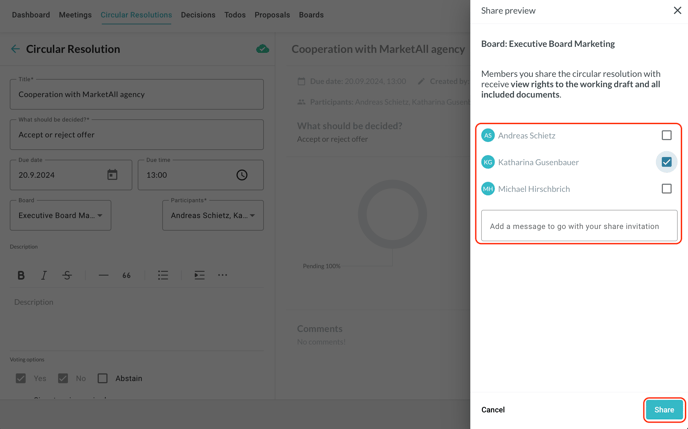
Before publishing a circular resolution, you can share it with the Board Members for feedback by clicking on the respective button in the bottom-right corner:
Choose which Board Members should receive the preview, add a message if necessary and click on "Share" in the bottom-right corner:
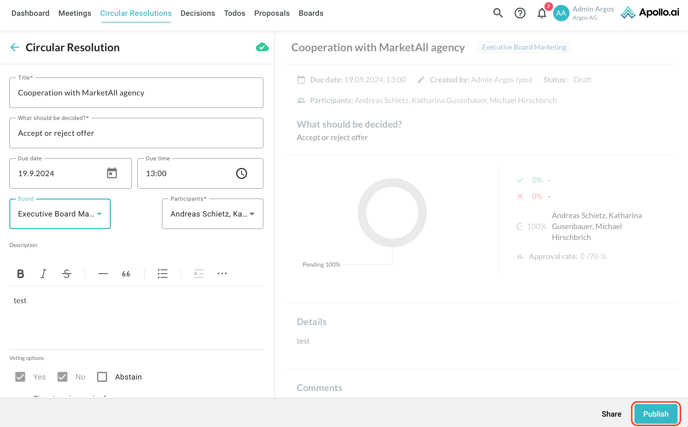
Once ready to publish the circular resolution, click on "Publish" in the bottom-right corner:
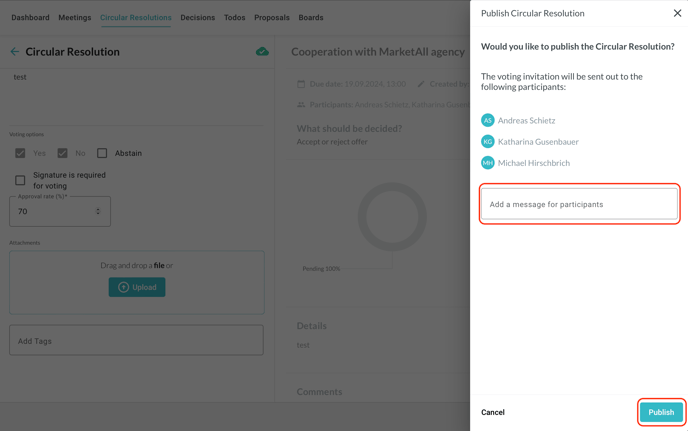
If needed, you can add a message to the participants before you click again on "Publish" at the bottom:
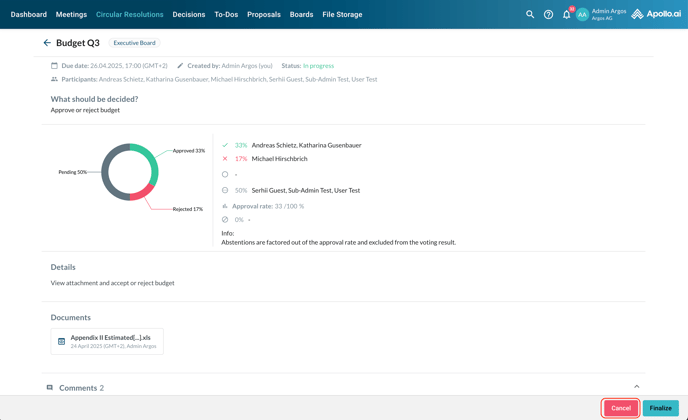
You can view the status of your circular resolution anytime by clicking on the respective item in the "Circular resolutions" tab. If needed, you can cancel the decision by clicking on the red button in the bottom-right corner:
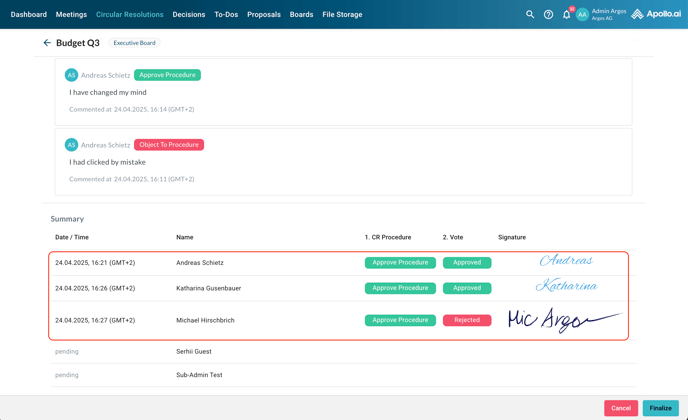
Any comments and signatures are visible to all Board Members and Board Organizers at the bottom of the page. The column "CR procedure" shows the approvals/objections related to the procedure, whereas the column "Vote" shows the approvals/rejections/abstentions related to the contents:
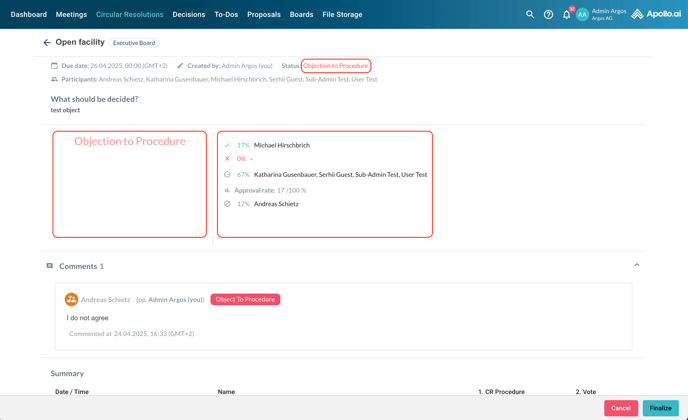
If one or more board members object to the procedure, the status of the circular resolution is automatically changed to "Objection to procedure" and the pie chart on the voting is not shown any longer, however the remaining board members can still keep voting and their votes are shown on the right side:
Once the voting is over, you can close the decision through the "Finalize" button in the bottom-right corner:
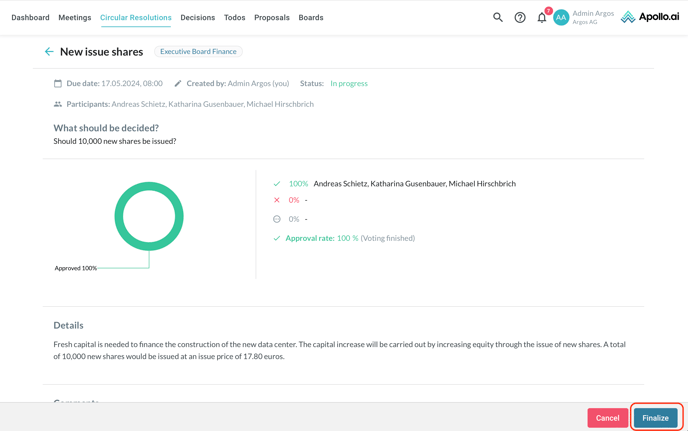
The system suggests a result based on the given approval rate and the votes received, however the Board Organizer can override the suggested result through the buttons in the bottom-right corner:
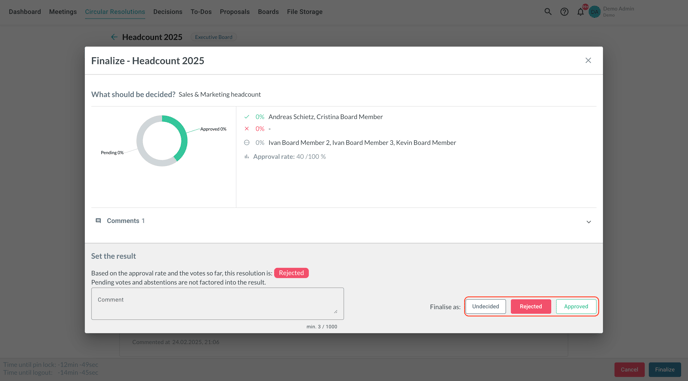
Warning: The finalisation process cannot be reverted.
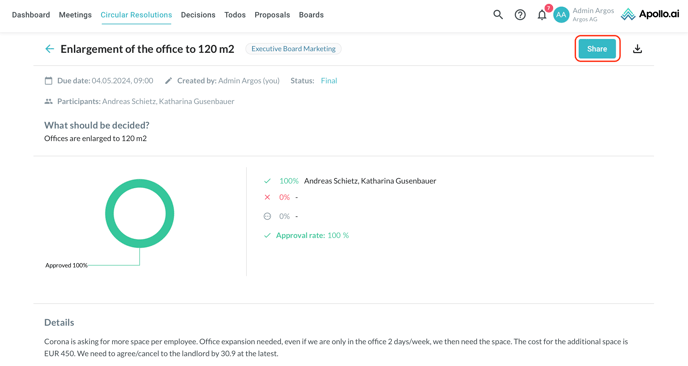
Finalised circular resolutions can be shared with boards, groups, or individual users:
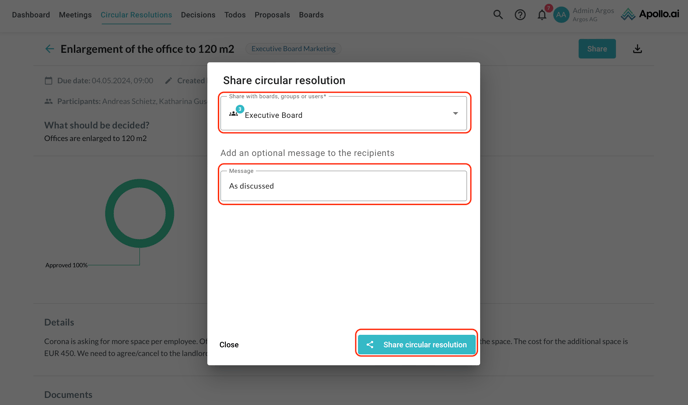
Choose the recipients in the pop-up window and a message if needed, before you click on "Share circular resolution" at the bottom:
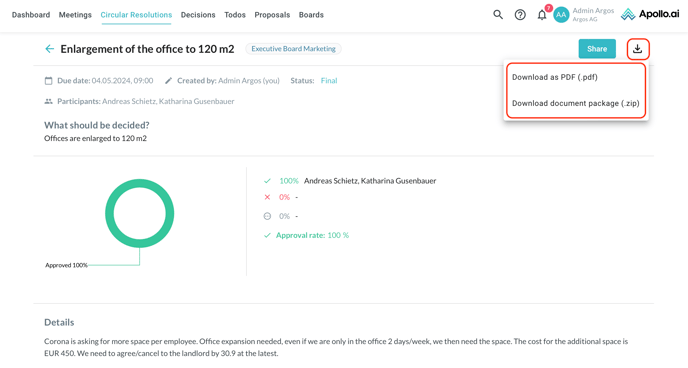
An export option is also available. Click on the download button in the top-right corner and select your preferred file format (the zip option only appears if at least one document is attached to the circular resolution):