![Apollo_Logo_img only.png]](https://help.apollo.ai/hs-fs/hubfs/Apollo_Logo_img%20only.png?height=40&name=Apollo_Logo_img%20only.png)
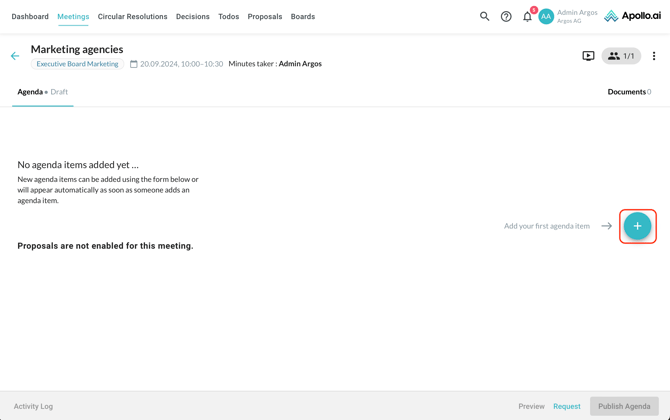
After creating a new meeting, you are redirected to the agenda edit mode. Add your first agenda item by clicking on the "+" symbol on the right:
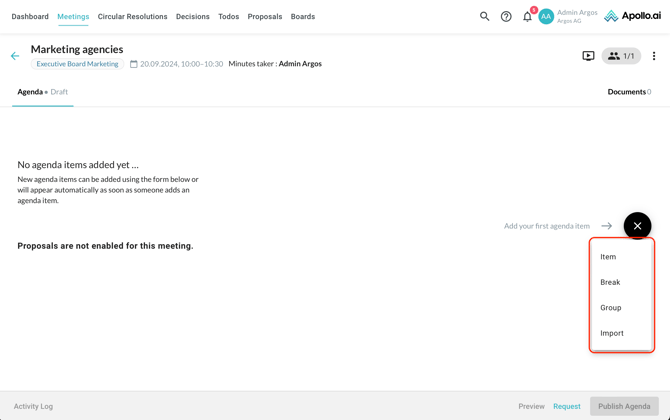
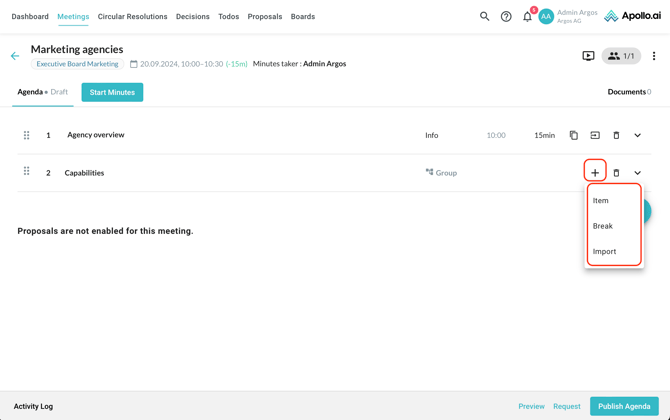
You can add an item, plan a break, add a group of items, or import an item proposal if any were submitted:
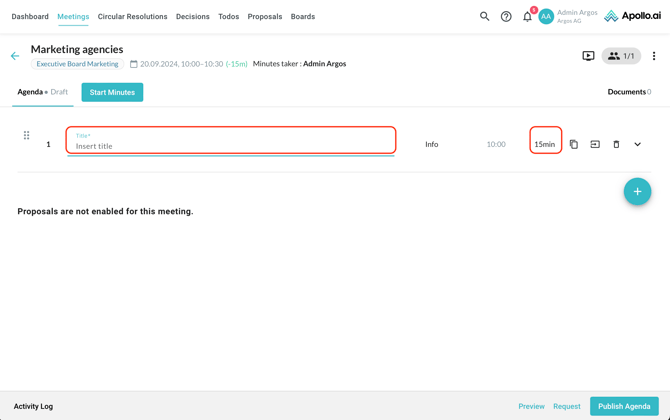
If you choose to add a single item, you will need to indicate the title and duration:
You can also change the item type based on the nature of the session (information, decision, report, or workshop):
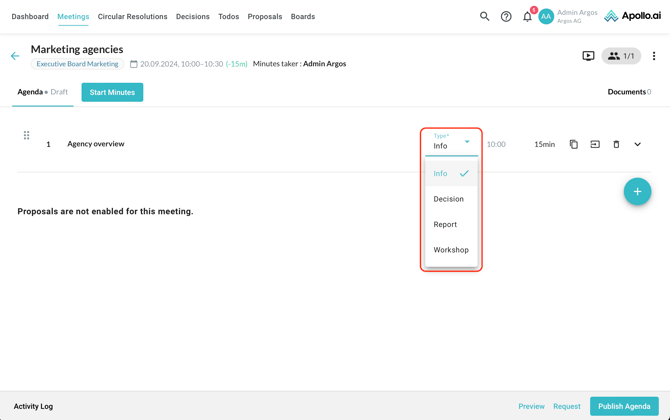
If you have defined some customized agenda item types, you will see them in the drop-down menu.
If you decide do add a group of items, enter a title, then click on the "+" symbol on the right to add individual items to the group:
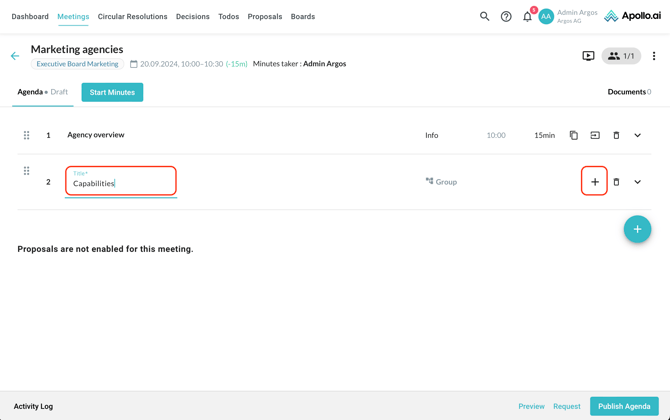
In the second item layer, you can choose again between a manually-entered item, a break, and a proposal import:
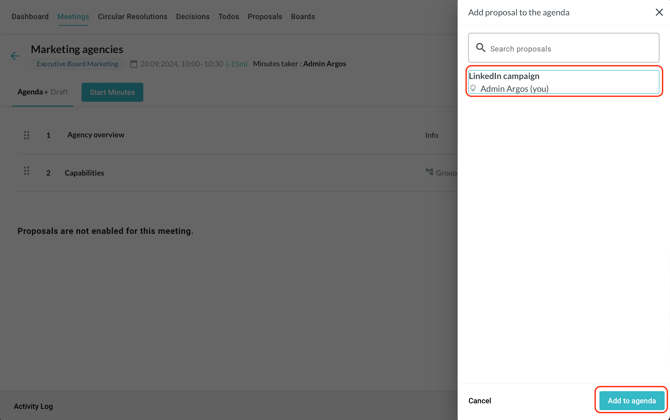
If you choose to import an item proposal, select the desired proposal from the list, then click on "Add to agenda" in the bottom-right corner:
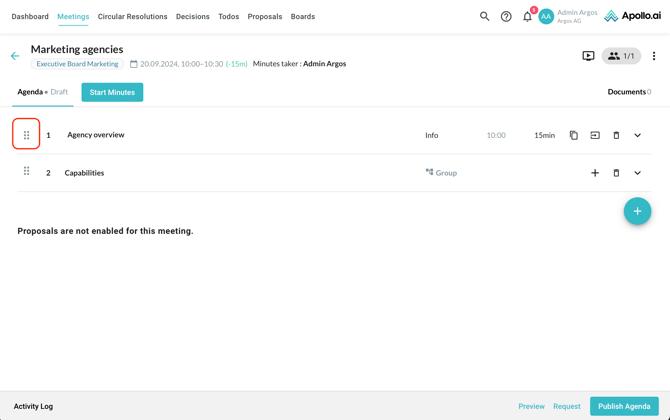
You can use the symbol with the six dots on the left to activate the drag-and-drop function:
You can also duplicate an item, move it to another meeting, or delete it using the buttons on the right:
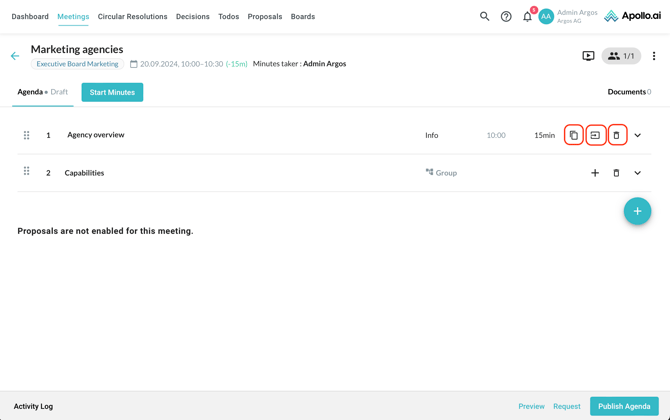
An item group can only be deleted.
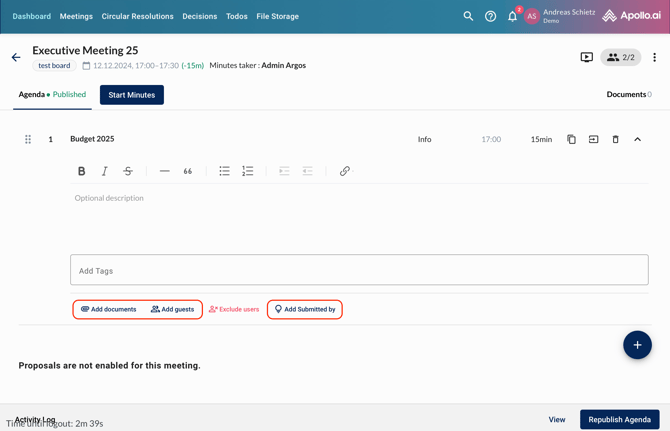
Expand an item in order to edit the description and add tags:
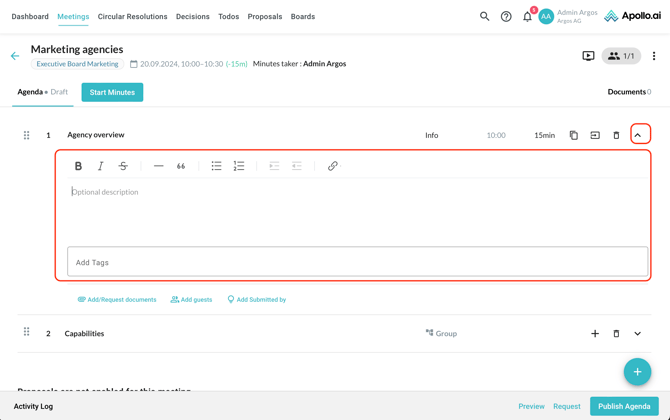
Use the options below each item to upload or request documents, add guests to an individual item, or indicate the name of the user that submitted the item proposal in case they did not submit it through Apollo.ai but to you directly (for example by email):
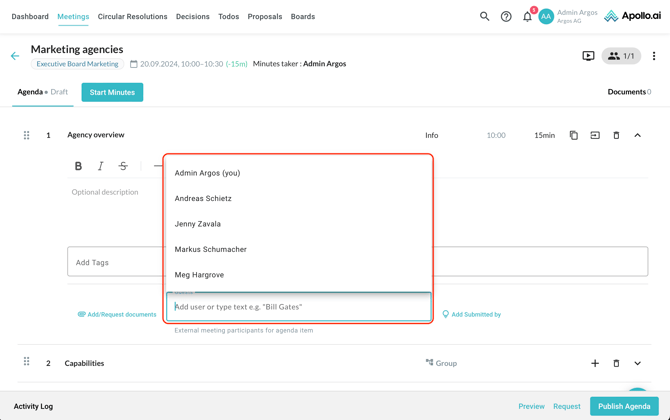
If you decide to add a guest, you can select an existing Apollo.ai user or type in the name of an external participant:
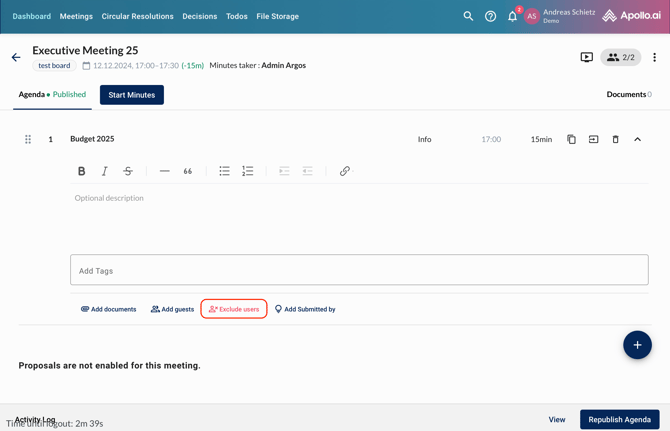
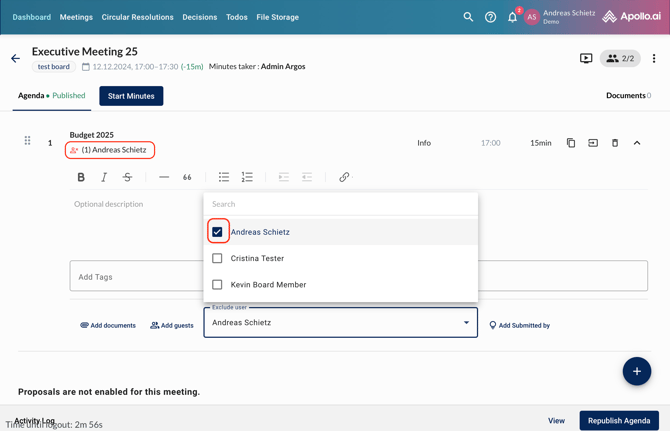
You can also exclude a specific board member from one or more agenda items through the button 'Exclude board members'. The indicated user is not going to see neither the agenda item description nor the minutes or any other item related to that agenda point: