![Apollo_Logo_img only.png]](https://help.apollo.ai/hs-fs/hubfs/Apollo_Logo_img%20only.png?height=40&name=Apollo_Logo_img%20only.png)
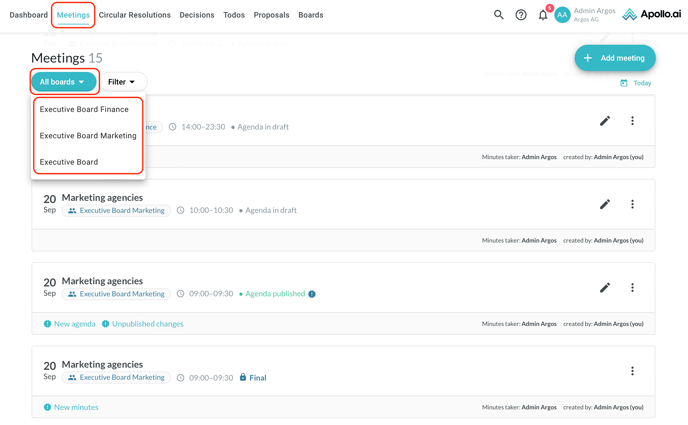
Go to the "Meetings" tab. If you are part of more than one board, use the "All Boards" button on the top left to filter by board and view meetings for the selected board only:
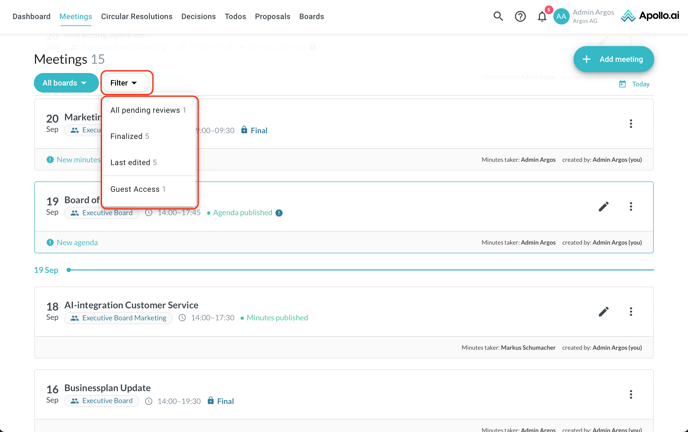
You can add filters by status, last edited, or sessions including guests through the "Filter" button, which can apply to all boards or to a specific board (based on your previous board selection):
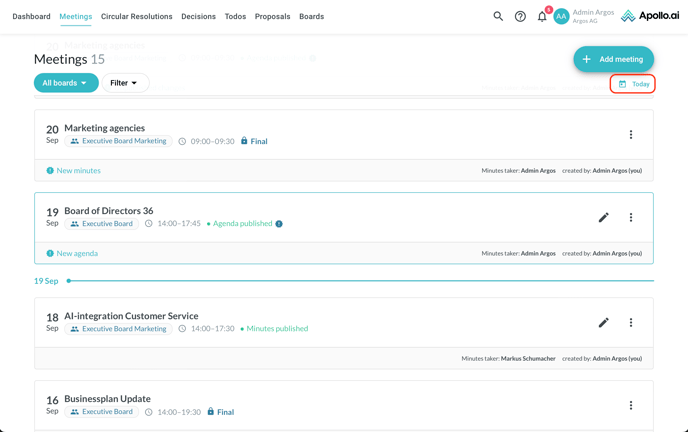
The meetings are listed in chronological order starting from the latest one. When you scroll down the list, you can click on "Today" in the top-right corner to move back to the current date:
For every item, you can see the date on the left and the title, board, time, and status on the right:
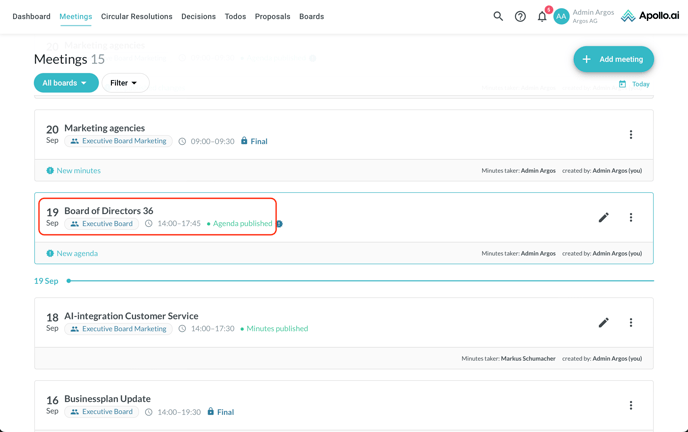
"Agenda in draft" means that the Board Organizer is working on the agenda. Drafts are only visible to users with a Board Organiser profile, however a review can be shared with the Board Members before the agenda is published in order to request feedback:

"Agenda published" means that the agenda has been published by the Board Organizer, so it is now visible to Board Members and Guests as well. If a new version of the agenda has been published, a warning symbol as well as a hint are visible in blue:

"Minutes published" means that the minutes have been published by the Board Organizer, so they are now visible to Board Members and Guests as well.  If a new version of the minutes has been published, a warning symbol as well as a hint are visible in blue.
"Final" means that the meeting is completed and no further changes are allowed:

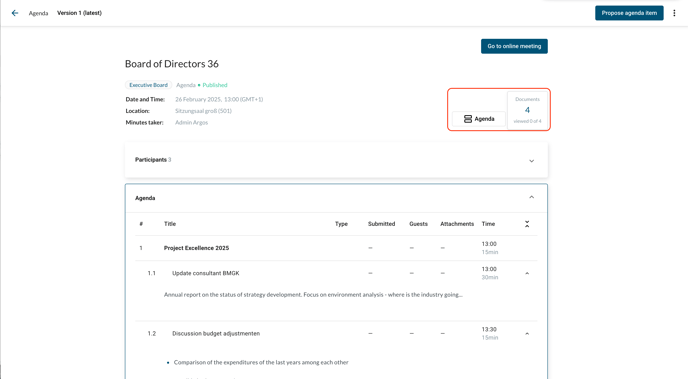
When opening a meeting for which no minutes have been published yet, you will see the meeting information at the top, followed by the sections Participants, Agenda, Proposed agenda items, and Annex, which you can all show or hide as needed. At the top, the button 'Documents' shows you how many attachments have been uploaded to the meeting and how many of them you have already opened. Click on 'Agenda' to open the agenda in PDF format:
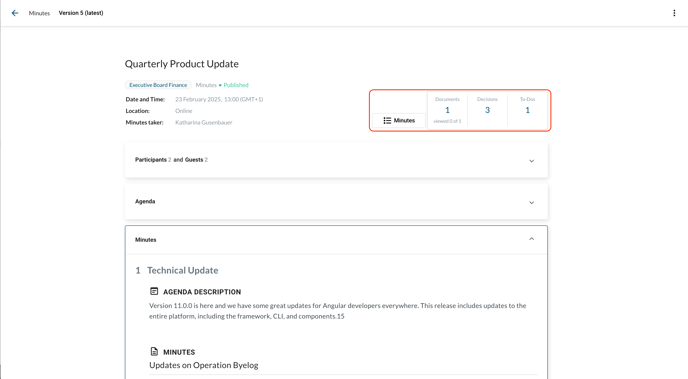
When opening a meeting for which the minutes have already been published, you will see the meeting information at the top, followed by the sections Participants, Agenda, Minutes, and Annex, which you can all show or hide as needed. At the top, the button 'Documents' shows you how many attachments have been uploaded to the meeting and how many of them you have already opened. You can also see how many decisions and to-dos were logged during the meeting. Click on 'Minutes' to open the minutes in PDF format:
If 2 or more versions of the agenda and/or of the minutes have been published, you can access the previous versions through the button in the top left corner:
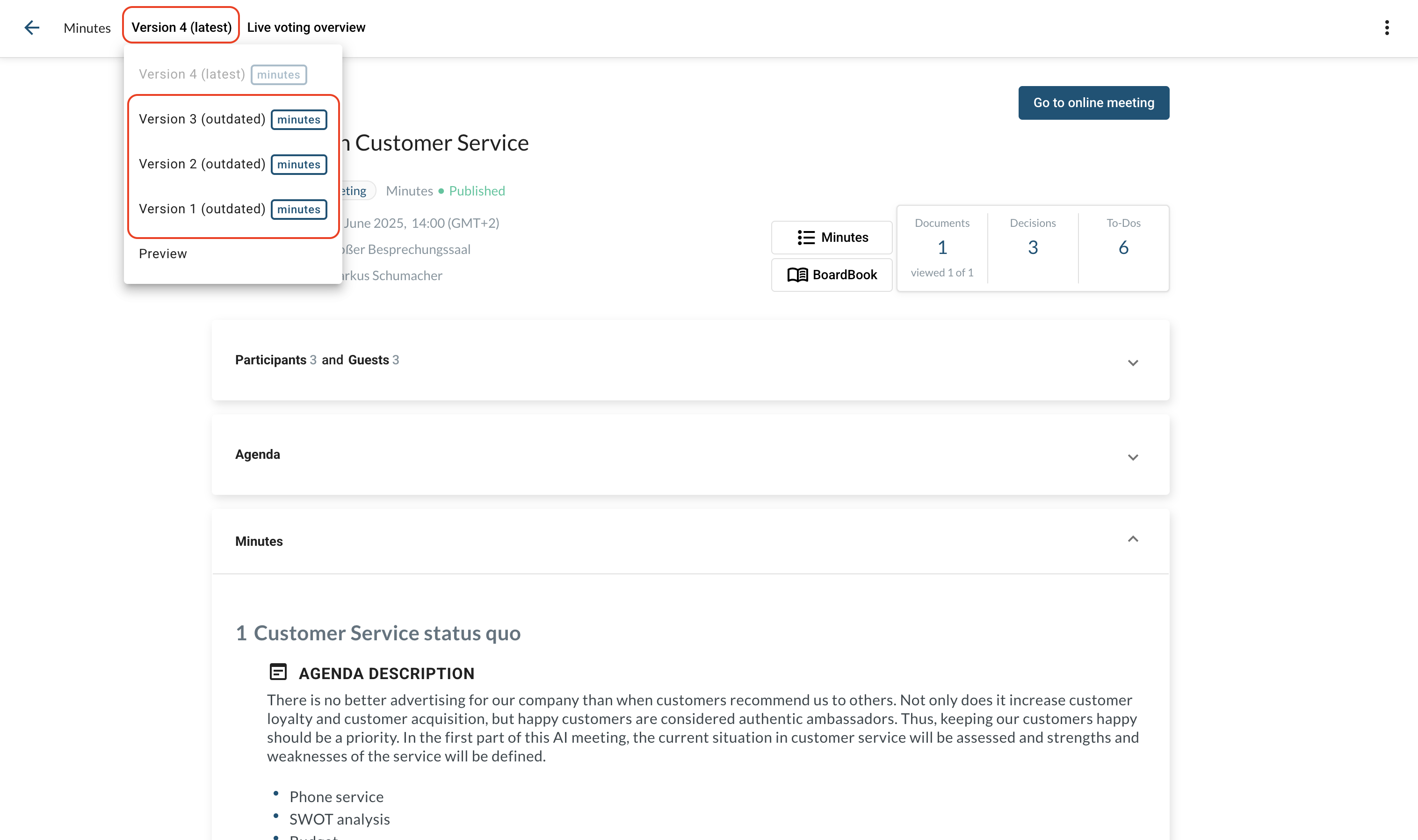
When viewing an outdated agenda or minutes version, easily change back to the current version by clicking on "Switch to latest version" at the top:
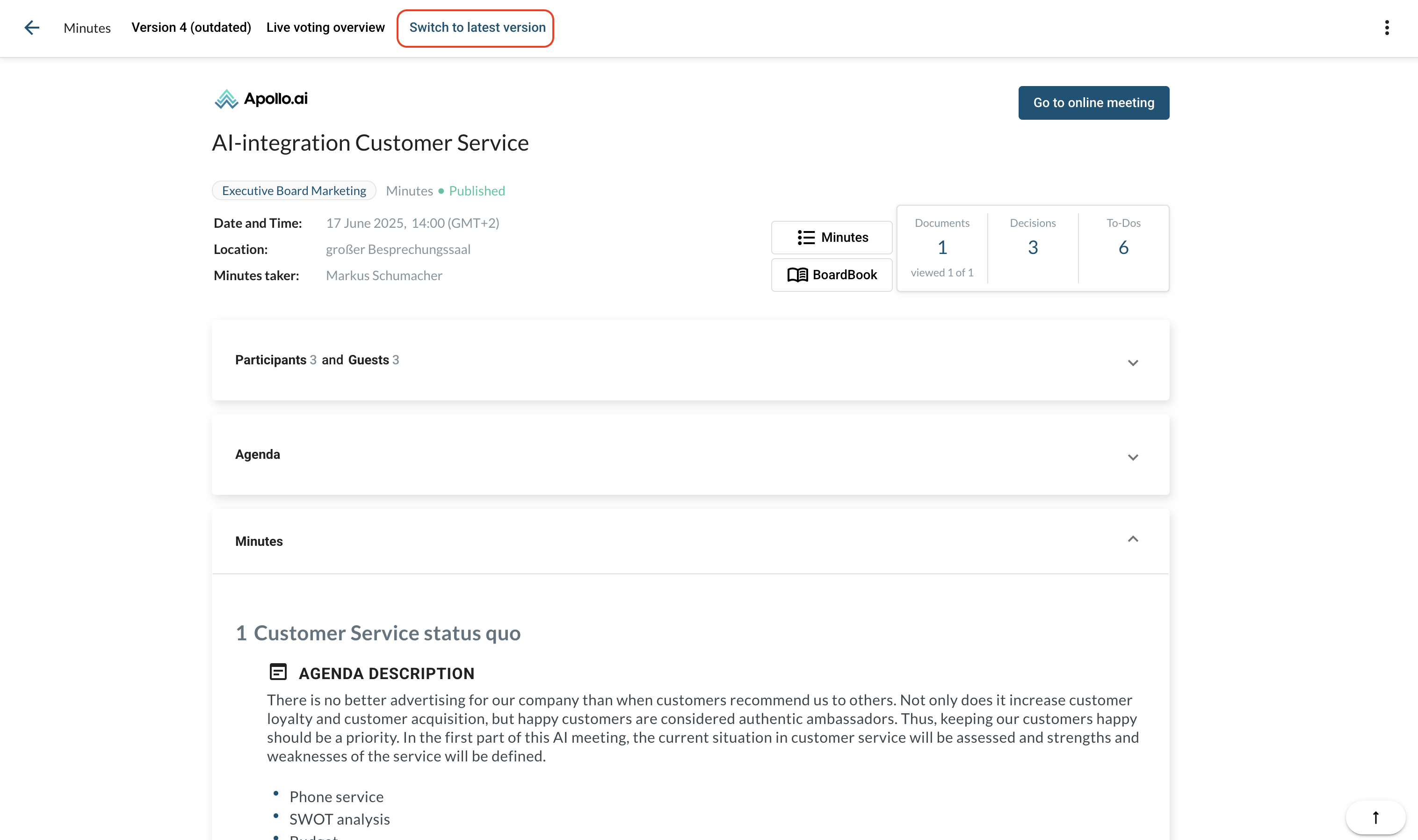
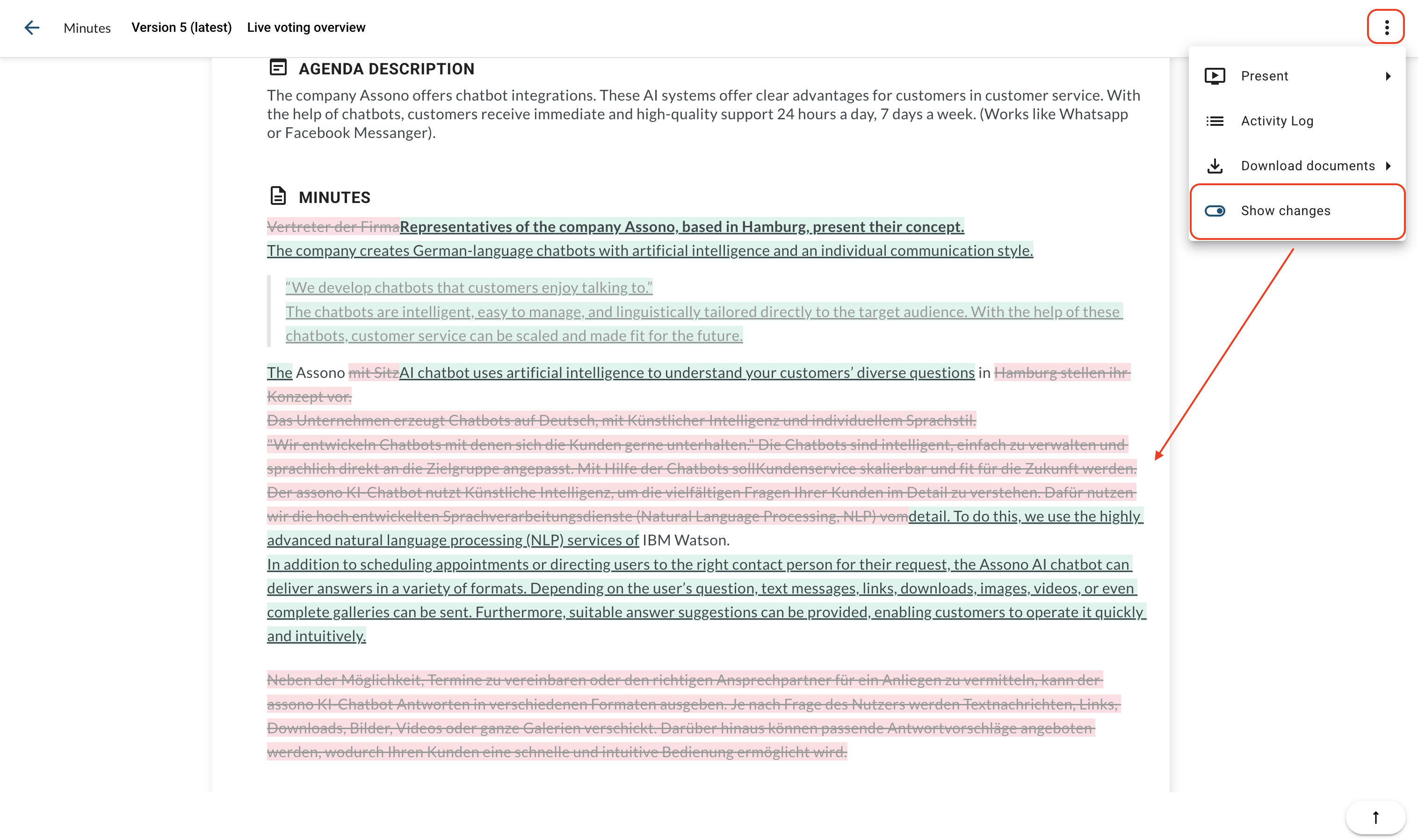
Activate the "Show changes" function by clicking on the three-dot menu in the top right corner to highlight changes between the current version and the previous one, marking removed text in red and new text in green: